
Download macOS Ventura – free macOS update, productivity boost, secure upgrade
Overview of macOS Ventura
macOS Ventura is Apple’s 19th major operating‑system release for Macintosh computers, arriving as a free update that targets both performance and productivity. Announced at WWDC 2022 and positioned as the successor to macOS Monterey, Ventura brings a fresh visual language, tighter integration with native apps, and a suite of enhancements that aim to streamline everyday workflows. The update is especially relevant for remote‑and‑hybrid workers, students, and creative professionals who rely on fast, responsive tools to stay on the go.
While the public release is expected later in the year, developers can already explore Ventura through the macOS Developer Beta Access Utility. This beta program lets early adopters test new features, report bugs, and help shape the final polish before the commercial rollout. The beta version is not a production‑ready build—users should expect occasional crashes, UI quirks, and the need for multiple restarts during installation. Nevertheless, the preview gives a clear picture of the direction Apple is taking: faster Spotlight searches, a revamped Mail app, live activities in the menu bar, and a brand‑new System Settings interface that mirrors iOS.
Ventura also marks a turning point for hardware support. Apple has dropped compatibility for several older Macs, focusing on devices released from 2017 onward. This decision allows the OS to leverage modern silicon, faster SSDs, and newer graphics pipelines, but it also means users with legacy hardware must remain on Monterey or earlier releases. For those with supported Macs—such as the 2017 iMac, 2018 MacBook Air, or any Apple Silicon machine—the upgrade promises smoother animations, reduced latency in native apps, and better battery efficiency.
Security is another cornerstone of Ventura. The update includes enhanced Gatekeeper checks, stronger XPC services sandboxing, and improved privacy controls for location, microphone, and camera usage. Apple also introduces a “Rapid Security Response” mechanism that can push critical patches without a full OS reinstall, keeping devices protected against emerging threats. Combined with the free price tag, Ventura offers a compelling reason to stay current, provided your Mac meets the minimum system requirements.
Key Features of macOS Ventura
- Stage Manager: A new window‑management tool that automatically arranges open apps into a clean, draggable sidebar, helping users keep focus while multitasking.
- Continuity Camera: Turns your iPhone into a high‑quality webcam for Mac, with Desk View, Center Stage, and Portrait mode support.
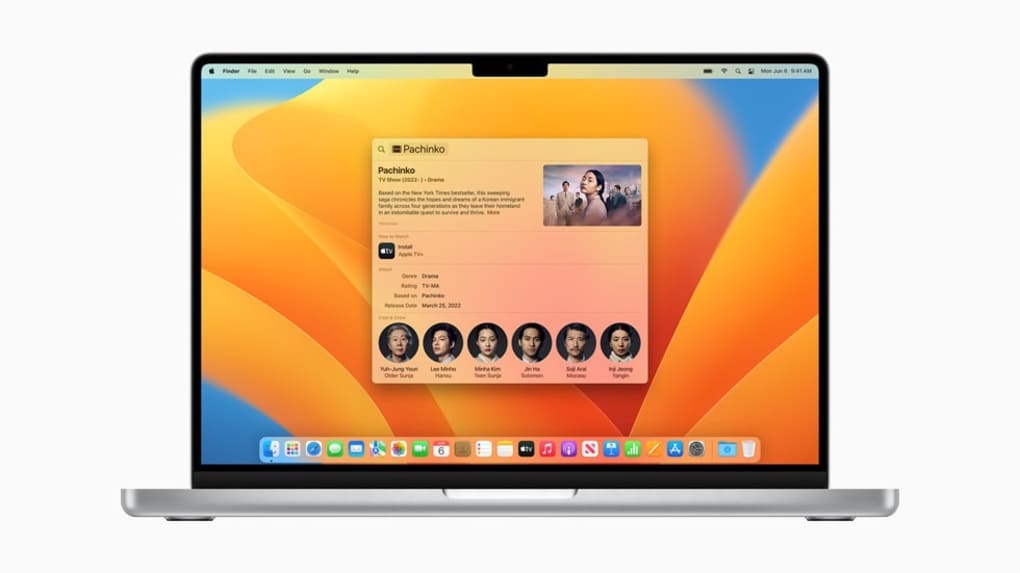
- Spotlight Enhancements: Richer search results with quick look previews, larger icons, and the ability to run web shortcuts directly from the search bar.
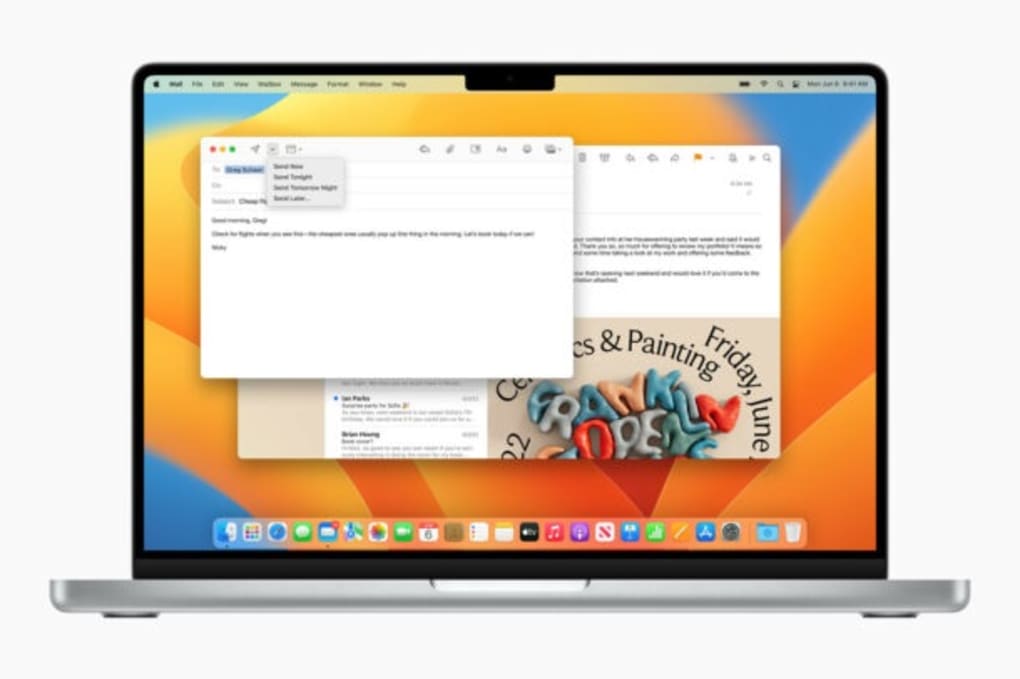
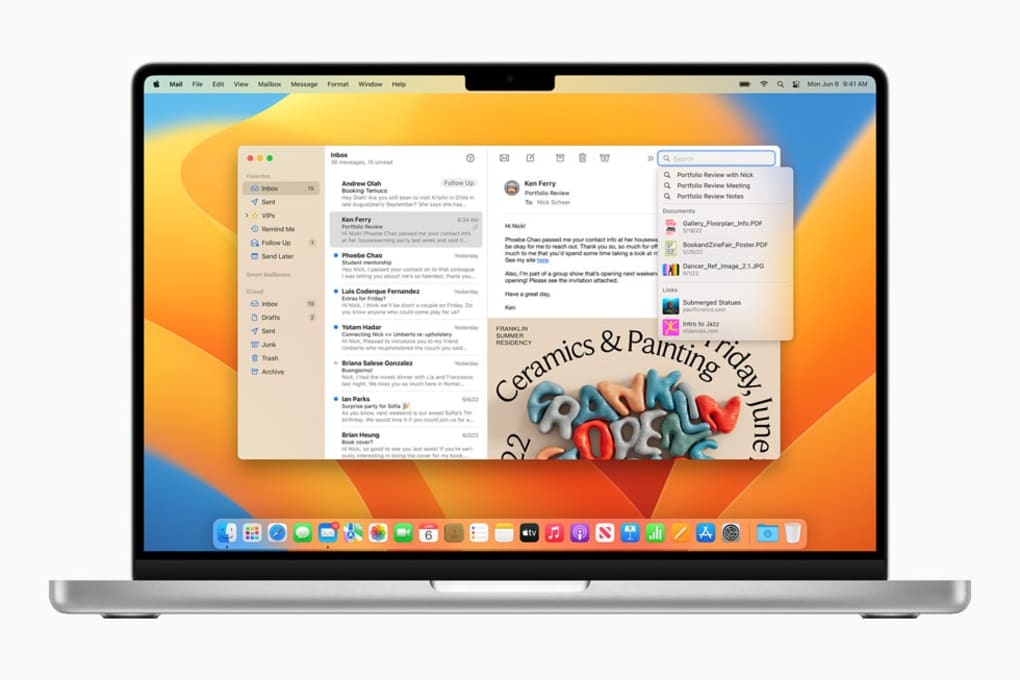
- Mail Revamp: Improved search, undo send, scheduled send, and follow‑up suggestions based on AI analysis of your inbox.
- System Settings Redesign: A iOS‑style settings pane that groups related options together, making it faster to locate privacy and network controls.
- Live Activities: Real‑time updates from apps (like sports scores or delivery status) appear in the menu bar without opening the full app.
- Enhanced Security: Rapid Security Response, improved Gatekeeper, and more granular privacy toggles for microphone, camera, and location.
- Freeform (Beta): A collaborative whiteboard that lets teams sketch, annotate, and brainstorm together across devices.
- Improved Safari: Faster page loading, built‑in translation, and stronger anti‑tracking measures.
- Weather & Clock Widgets: New default widgets that integrate seamlessly with the Notification Center for at‑a‑glance information.
Beyond the headline features, Ventura refines many under‑the‑hood components. The kernel receives performance patches that reduce wake‑up latency, especially on Apple Silicon Macs. Background processes such as Time Machine and Software Update now run with lower priority, preserving CPU cycles for active tasks. Developers benefit from updated SwiftUI APIs, enabling richer UI experiences with less code. For power users, the Terminal gets native support for the new Zsh‑style prompt themes, and the default shell remains Zsh, but with added autocompletion for system commands.
Ventura also introduces a tighter coupling between iPadOS and macOS via Universal Control improvements. Users can drag and drop files between a Mac and an iPad without needing to configure additional settings. This continuity extends to AirPlay to Mac, allowing iPhone or iPad screens to be mirrored directly onto a Mac’s display, a feature that previously required a separate Apple TV.
All of these updates are packaged into a single free download from the Mac App Store. Apple continues its tradition of delivering major OS upgrades at no cost, encouraging users to stay up‑to‑date with the latest security patches and performance enhancements. The free nature of Ventura, combined with its focus on productivity tools, makes it an attractive option for both personal and enterprise environments.
Installation & Usage Guide for macOS Ventura
Before diving into the download, it’s essential to back up your data. Use Time Machine or a third‑party backup solution to create a full snapshot of your current system. This precaution protects you against any unexpected issues that may arise during the upgrade process.
Step‑by‑Step Installation
- Check Compatibility: Verify that your Mac model appears on Apple’s supported‑device list (e.g., 2017 iMac, 2018 MacBook Air, M1‑based Macs). Open About This Mac → System Report → Hardware Overview to confirm the model year.
- Enroll in the Beta (Optional): If you want early access, download the macOS Developer Beta Access Utility from the Apple Developer portal. Sign in with your Apple ID, agree to the terms, and enable the Ventura beta channel.
- Download the Installer: Open the System Settings app, navigate to General → Software Update, and click Upgrade Now. For the beta, the update appears as “macOS Ventura Beta 1”. The download size is roughly 12 GB, so a stable Wi‑Fi connection is recommended.
- Run the Installer: Once the download completes, the installer launches automatically. Follow the on‑screen prompts, agree to the license agreement, and select the destination disk (typically “Macintosh HD”).
- Restart & Install: Your Mac will reboot several times. Do not interrupt the process; the installer writes the new system files and configures the boot loader.
- Post‑Installation Setup: After the final reboot, you’ll be greeted with a brief “Welcome to Ventura” screen. Sign in with your Apple ID, enable Siri if desired, and let the system finish indexing Spotlight and migrating preferences.
First‑Run Tips
Once Ventura is up and running, take a few minutes to explore the new System Settings layout. The left‑hand pane groups categories (e.g., Network, Privacy & Security) in a way that mirrors iOS, making cross‑device navigation intuitive. Enable Stage Manager from Desktop & Dock if you frequently juggle multiple windows. Turn on Continuity Camera under Privacy → Camera to instantly use your iPhone as a webcam.
If you opted into the beta, keep an eye on the Feedback Assistant app. Report any crashes, UI glitches, or compatibility issues with third‑party software. Your feedback directly influences the stability of the final public release.
Finally, check for any post‑install updates. Apple often releases incremental patches (e.g., Ventura 13.0.1) that address early‑beta bugs. Navigate back to Software Update after the initial install and install any available updates before you rely on the system for critical work.
Compatibility, Pros & Cons of macOS Ventura
macOS Ventura runs on Intel‑based Macs released in 2017 or later and on all Apple Silicon models (M1, M1 Pro, M1 Max, M2, etc.). The official compatibility matrix excludes older hardware such as the 2015 MacBook Pro, 2013 iMac, and any Mac with a 32‑bit processor. Users with unsupported devices must continue using macOS Monterey or earlier, as attempting to force‑install Ventura can lead to kernel panics and data loss.
Pros
- Free Upgrade: No purchase required; the update is delivered via the Mac App Store.
- Performance Boost: Optimizations for Apple Silicon reduce app launch times and improve battery life.
- Productivity Features: Stage Manager, Continuity Camera, and Live Activities streamline multitasking.
- Security Enhancements: Rapid Security Response and tighter Gatekeeper protections keep the system safe.
- Unified Settings UI: The iOS‑style System Settings simplify navigation for users familiar with iPhone/iPad.
- Improved Native Apps: Mail, Safari, and Spotlight receive major usability upgrades.
- Future‑Proofing: Early adopters gain access to new APIs for developers and can influence the final release.
Cons
- Hardware Cutoff: Older Macs are left behind, forcing users to stay on outdated OS versions.
- Beta Instability: The developer preview can be crash‑prone, with occasional data loss if not backed up.
- Learning Curve: New UI elements (Stage Manager, System Settings) may confuse longtime macOS users.
- Multiple Restarts: Installation requires several reboots, interrupting workflow.
- App Compatibility Issues: Some legacy third‑party apps may need updates to run correctly on Ventura.
Overall Verdict
For users with supported hardware, macOS Ventura delivers a compelling mix of speed, security, and productivity tools that justify the free upgrade. The new features are especially valuable for remote workers and creatives who rely on seamless cross‑device workflows. However, if you own a pre‑2017 Mac, you’ll need to weigh the benefits of staying on Monterey against the cost of purchasing a newer machine. The beta version is best suited for developers and enthusiasts comfortable with troubleshooting and providing feedback.
Review Summary: macOS Ventura is a polished, free upgrade that significantly enhances productivity and security for supported Macs. While the hardware cutoff limits its reach, the feature set—especially Stage Manager and Continuity Camera—makes it a worthwhile update for modern devices.
Frequently Asked Questions about macOS Ventura
Can I install macOS Ventura on a Mac that is not listed as supported?
Officially, no. Apple only provides the Ventura installer for Macs released in 2017 or later (or any Apple Silicon model). Attempting to force‑install on older hardware can cause kernel panics and may render the system unusable. It’s safest to remain on macOS Monterey or earlier for unsupported devices.
Do I need a paid Apple Developer account to get the Ventura beta?
Yes. Access to the macOS Developer Beta requires enrollment in the Apple Developer Program, which costs $99 USD per year. Once enrolled, you can download the macOS Developer Beta Access Utility and opt into the Ventura beta channel.
Will my existing apps work after upgrading to Ventura?
Most modern apps that are already 64‑bit will run without issues. However, some legacy or poorly maintained software may require updates from the developer. It’s a good practice to check the app’s website or the Mac App Store for Ventura compatibility notes before upgrading.
How much free storage do I need to install Ventura?
Apple recommends at least 20 GB of free space for the installation process, though the download itself is roughly 12 GB. Having additional space ensures the system can create temporary files and perform the necessary migration of user data.
What security improvements does Ventura bring?
Ventura introduces Rapid Security Response, which allows Apple to push critical patches without a full OS update. Gatekeeper has been hardened to verify not only the app bundle but also the notarization status of individual components. Privacy controls now provide more granular toggles for microphone, camera, and location access, and the OS enforces stricter sandboxing for background services.
Conclusion & Call to Action
macOS Ventura stands out as a free, feature‑rich upgrade that modernizes the Mac experience for anyone with a 2017 or newer device. The combination of Stage Manager, Continuity Camera, and a redesigned System Settings panel delivers tangible productivity gains, while the enhanced security framework ensures your data remains protected against emerging threats. If you’re ready to enjoy smoother multitasking, faster Spotlight searches, and a more cohesive Apple ecosystem, downloading Ventura is a logical next step.
Before you begin, remember to back up your data, verify hardware compatibility, and allocate sufficient free disk space. For power users and developers, joining the beta program offers a chance to influence the final release, but it comes with the caveat of occasional instability. For most everyday users, waiting for the public release ensures a stable, polished experience.
Ready to upgrade? Click the “Download macOS Ventura” button below to launch the Software Update utility and start the free upgrade process. Embrace the new productivity tools, enjoy the performance boost, and keep your Mac secure with Apple’s latest operating system.







